
For one image, right-click and save, then open it in its own tab for the full size. For a few, drag them into a folder. For a whole gallery, screenshots and DevTools work but take time, and a downloader extension pulls the full set in one pass. The methods below run from fastest to most thorough.
Method 1: right-click, and check what you got
Right-click the image and choose "Save image as". Pick a folder, not the default Downloads pile, and give the file a name you will recognise later. Then check the result: right-click the saved file, choose Properties, then Details, and read the dimensions. If the photo is 500px wide, you saved the display copy, not the original.
This method is fast and it works on most stores. Its weakness is size. Product pages show a mid-size copy for speed, and right-click saves exactly that copy. For a reference photo or a mood board it is fine. For a listing or a print file it is not.
Method 2: open the image in its own tab
Right-click and choose "Open image in new tab". The browser shows the file on its own, and the address bar shows the real URL. Many stores put a size code in that URL: a number like 500, 800 or 1000, or a suffix like _small or _medium. Edit the number upward, or delete the size segment, press Enter, and the browser loads the larger version. Save that one.
This is the best free method for single images, and it works on Amazon, eBay, AliExpress and most Shopify stores. It fails when the store hides the real URL behind a script, or when the largest file on the server is still small because the seller uploaded a small original.
Method 3: drag, screenshot and DevTools
Dragging is the quiet shortcut. Click an image, hold, and drag it onto your desktop or into a File Explorer window. Chrome drops a copy there. It is the same file right-click would save, so the size limits still apply, but it is quick when you want three or four photos.
When a site blocks right-click, take a screenshot of the photo instead. Press Win + Shift + S, drag a box around the image, and the capture goes to your clipboard. Paste it into Paint or Photos and save. The catch is quality: a screenshot is only as sharp as your screen, so a 1920px monitor gives you at most a 1920px-wide capture, and zooming the page first helps a little.
The thorough option is DevTools. Press F12, open the Network tab, filter by Img, and reload the page. Every image the page loads appears as a row with its real URL and size. Right-click a row, open it in a new tab, and save the full file. It takes a few minutes to learn, and it finds images the page hides from right-click.
Doing it with HiRes
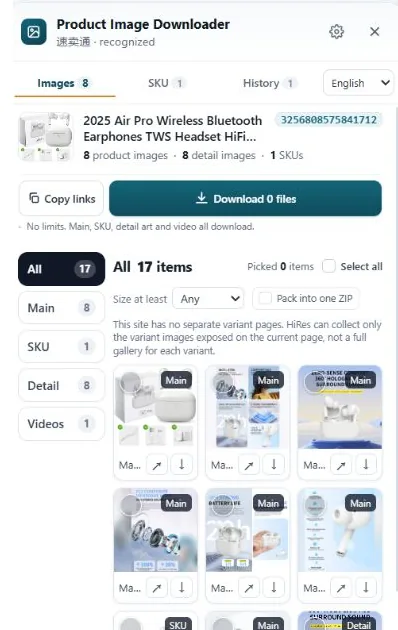
HiRes is a Chrome extension for product pages on Amazon, AliExpress, eBay, TikTok Shop, Temu, Etsy, Lazada and Walmart. Open a product page on Windows, click the HiRes button in the corner, and the panel lists what the page exposes, grouped into main gallery, variant and detail images. Tick what you need and save the files individually for free, or package a bigger set as a ZIP, which is part of Pro at $19 once.
Everything runs locally in your browser, and files land in your Downloads folder. The honest limit is the same as every other method: HiRes can only save what the page actually loads. A listing behind a login wall gives any tool less to work with.
Keeping the files organised
Downloads pile up fast. Make a folder per product or per supplier, and name files by what they show: front, side, detail, packaging. A week later you will not remember what IMG_4821.jpg was, but front-view-blue.jpg tells you at once.
Check sizes before you reuse anything. A 500px file that looked fine in the browser will look soft in a listing. The guide on how to check a product image's size shows the thirty-second check. Delete the small copies as you go, so the folder only holds files worth keeping.
Questions people ask
Where do downloaded images go on Windows?
By default, Chrome saves to your Downloads folder. You can change this in Chrome settings under Downloads, or turn on "Ask where to save each file before downloading" so every save prompts you for a folder.
Why is the saved image smaller than the one on screen?
Product pages show a mid-size copy for speed, and right-click saves that copy. Open the image in its own tab and edit the size code in the URL, or use the zoom viewer, to reach the larger version the store keeps on its server.
How do I screenshot just one product photo?
Press Win + Shift + S, then drag a box around the photo. The capture goes to your clipboard, so paste it into Paint with Ctrl + V and save it. Zoom the page in first with Ctrl and + to get a sharper capture.
Can I download a whole product gallery at once on Windows?
Yes. A downloader extension like HiRes pulls the gallery, variant and detail images from a supported product page into one panel. Individual downloads are free; packaging a large set as a ZIP is part of Pro at $19 once.
Skip the right-click routine
HiRes gathers the gallery, variant and detail images from the product page you are already on, in one panel. Free for individual downloads, no account needed.
Get HiRes for Chrome