
The size you see on a listing page is a display copy, not the file behind it. Check the real pixel size in the saved file's properties (Windows) or Get Info (Mac), or open the image on its own in a browser tab before saving. Compare against the bar: 1000px on the longest side for Amazon zoom, 1600px for eBay, 2000px on the short side for Etsy.
Why the size on screen tells you nothing
Marketplaces don't serve one photo. They generate a stack of copies from the seller's upload: small for search results, mid-size for the gallery, big for the zoom viewer. The copy in your browser is picked to fit the layout box, often 500 to 800 pixels wide. It is not the file.
The screen hides this. Your browser smooths a small image as it stretches it, so a 700px file looks passable in the page and falls apart when you crop it. The zoom viewer misleads too: the photo looks huge in there, but that version only loads inside the viewer. Right-click, save, and you may still get the small gallery copy.
Judge a photo by the pixel dimensions of the actual file, never by how it looks on the page.
Check the file you already saved
On Windows: right-click the file, choose Properties, open the Details tab. Dimensions reads something like 2000 x 2000: that pair of numbers is the real size. For a whole supplier folder, switch to Details view and add the Dimensions column: you can scan fifty files in seconds.
On a Mac: right-click the file and choose Get Info; Dimensions sits under More Info. Or open it in Preview and use Tools, then Show Inspector, for the same numbers.
Read the longest side first: that is the number marketplaces measure, and a 2000 x 1500 photo counts as a 2000px image.
Check in the browser before you save
Better still, check before the file lands on your disk:
- Open the zoom viewer first if the listing has one, so the page loads the biggest version it holds.
- Right-click the image and open it in a new tab.
- Read the tab title. In Chrome and Firefox, an image viewed on its own shows its real dimensions there, in the form photo.jpg (2000×2000).
- If the image is bigger than your window, click it once to view at 100% and check the detail, not just the numbers.
The URL sometimes gives the game away. eBay addresses end in a size code: s-l500 is a mid-size copy, s-l1600 is the big one. AliExpress display images often carry a suffix like .jpg_960x960. If the address says 500 or 960, that is not the original.
The numbers that matter
Each marketplace sets its own bar, mostly about zoom. At the time of writing, the figures worth remembering are:
- Amazon: zoom starts working once an image is at least 1000px on its longest side; 1600 to 2000px or more is the sensible target.
- eBay: the minimum is 500px on the longest side, and 1600px is recommended for the zoom view.
- Etsy: Etsy recommends images at least 2000px on the short side, a higher bar than most sellers expect.
- AliExpress: 1000x1000 or larger is recommended so zoom works, and square images do best in search.
Treat these as a floor to aim above, and confirm the current figures in your seller center.
The pixel count can lie too. Software can stretch an 800px photo into a 2000px file, and the properties will happily report 2000px. The detail never arrives. Before you trust a big number, open the image at 100% zoom and look at text, logos and hard edges. Real detail stays crisp. An upscaled file looks smeared, which is what buyers see when they zoom on your listing.
When the file is too small
- Go back for the original size. If you saved from the gallery, try the zoom viewer's version, or edit the size code in the image URL. Changing an eBay address from s-l500 to s-l1600, or trimming the suffix off an AliExpress address, often returns the larger file the seller uploaded.
- Ask the supplier. Supplier photo packs often hold bigger files than the listing shows, because the marketplace compressed what went on the page.
- Don't upscale and hope. Enlarging a small file may pass a pixel minimum, but the zoom view still looks soft, and soft main images cost clicks. If no bigger version exists, use the photo smaller in your description, or reshoot.
Doing it with HiRes
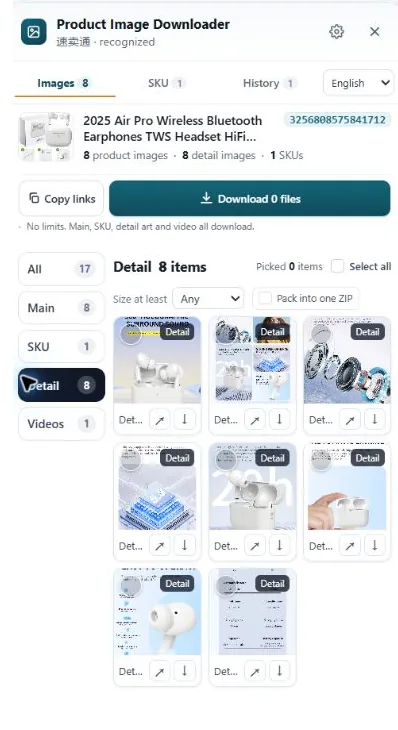
HiRes is a Chrome extension that sits on the product page itself. Open a listing on Amazon, AliExpress, eBay, Etsy or the other marketplaces it covers, click the HiRes button, and the panel lists what the page exposes, grouped before you download anything: main gallery, variant images with option labels where the page provides them, and detail images. No saving a pile of files and checking properties one by one afterwards.
Individual downloads are free, with no daily cap on product pages and no account to create. Everything runs locally in your browser, so files go from the marketplace straight to your Downloads folder. The honest limit: HiRes can only show what the page loads. If a seller uploaded small originals, you will see small images, and at least you will know it before building a listing on them.
Questions people ask
What pixel size should a product image be?
Aim for at least 1000px on the longest side. That is where Amazon's zoom starts working. eBay recommends 1600px for its zoom view, Etsy recommends at least 2000px on the short side, and AliExpress suggests 1000x1000 or larger. A bigger original also gives you room to crop.
Does DPI matter for product images online?
No. Screens go by pixel dimensions, not DPI. A 2000px photo saved at 72 DPI displays bigger and sharper than a 1000px photo saved at 300 DPI. DPI only matters when you print. If a supplier quotes you a DPI number, ask for the pixel dimensions instead.
Why does an image say 2000px but still look blurry?
Usually because the file was upscaled from a smaller original, or saved with heavy compression. The pixel count goes up, the detail does not. Open the image at 100% zoom and look at text, logos and hard edges. A true 2000px photo stays crisp there. An upscaled one looks smeared and blocky.
Can I make a small product image bigger?
You can enlarge the file, but you cannot add detail that was never captured. Upscaling an 800px photo to 2000px gives you a bigger soft photo. For a main listing image, get the original file from the supplier or reshoot the product instead.
See what a page really holds
HiRes lists the main, variant and detail images a product page exposes, grouped in one panel, so you can judge the files before you save them. Free for individual downloads, no account needed.
Get HiRes for Chrome