
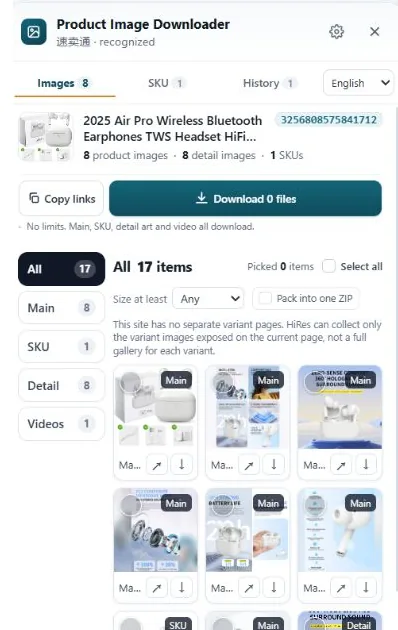
On a Mac, the fastest route is Chrome: Control-click the product photo, open the image in its own tab, and save the full-size file from there. HiRes works the same way in Chrome on a Mac as it does on Windows, with the same panel and free individual downloads. Safari is the odd one out: HiRes is a Chrome extension, with no Safari version.
Why saving on a Mac feels harder than it should
Nothing about a Mac makes saving images hard. The friction comes from three small things that add up. First, a trackpad has no right mouse button, so the save menu hides behind a Control-click or a two-finger tap, and new Mac users never find it. Second, Safari is the default browser, and its save menu is thinner than Chrome's. Third, the files land in Downloads with generic names, so a research session turns into a folder of image.jpeg files with no labels.
All three have easy fixes. Learn the shortcuts below, do the work in Chrome instead of Safari, and rename files as you save them. The rest of this guide walks through each method in order, from the quickest to the one that catches stubborn pages.
Method 1: Control-click and Save Image As
This is the one to try first, and it works in both Chrome and Safari:
- Hold Control and click the product photo. On a trackpad, a two-finger tap does the same thing.
- Choose Save Image As from the menu.
- Pick a folder, give the file a useful name, and save it.
The honest limit: this saves the copy the page is displaying, often a 500 pixel thumbnail made for page speed. It looks fine inside the listing and falls apart the moment you open it full-screen. For a single quick reference shot, that is fine. For anything you plan to reuse, use method 2.
Method 2: open the image in its own tab
The full-size file is usually one step behind the thumbnail. Open it in its own tab and the browser shows you the real file:
- Control-click the product photo and choose Open Image in New Tab.
- Look at the URL. Many marketplaces write the size into it: Amazon uses codes like _AC_SL1500_, eBay ends images in s-l500 or s-l1600, Etsy uses il_794xN for the display copy and il_fullxfull for the full one, AliExpress adds suffixes like _Q90 or _960x960.
- Edit the size code to the largest version, or trim it out, then press Return.
- Control-click the image and save it, or press Command-S.
Three shortcuts make this fast. Command-click a link to open it in a new tab without leaving the page. Command-W closes the tab you just saved from. Command-Shift-4 takes a screenshot of a selected area, a last resort only: a screenshot is stuck at screen resolution and never as sharp as the file itself.
Repeat the loop for each thumbnail in the gallery, and click every color or style option first, since variant photos only load under their own option. For one listing, this is a few minutes. For thirty listings, it is an afternoon, which is where HiRes comes in.
Method 3: the Network tab for stubborn pages
Some pages block the right-click menu or load images through scripts, so methods 1 and 2 find nothing to save. The Network tab shows every file the page actually loads:
- Press Command-Option-I to open DevTools in Chrome.
- Click the Network tab, then click Img to filter for image files only.
- Press Command-R to reload the page and watch the image list fill up.
- Click the largest files to preview them, then right-click one and choose Open in New Tab to save it.
This takes a minute to learn, and it grabs everything, including icons and logos, so sort by size and skip the tiny files. It is the fallback for pages that fight back, not the first thing to try.
Doing it with HiRes on a Mac
HiRes is a Chrome extension, and it works the same way in Chrome on a Mac as it does on Windows. Install it from the Chrome Web Store, open any product page on Amazon, AliExpress, eBay, TikTok Shop, Temu, Etsy, Lazada or Walmart, and click the HiRes button in the corner. The panel lists what the page exposes, already sorted: main gallery in one group, variant images with their option labels in another, detail images in a third.
Tick what you need and save the files individually, free with no daily cap, or package a bigger selection as a ZIP. That part, along with product video downloads and image resizing, is in Pro, $19 once. Everything runs locally, and the files go straight to your Downloads folder. HiRes can only save what the page loads, so a listing behind a login prompt gives any tool less to work with.
Two Mac-specific notes. First, HiRes needs Chrome 120 or newer, so check Chrome, About Google Chrome, and update if you are behind. Second, there is no Safari version. Safari does not run Chrome extensions. If Safari is your daily browser, keep it for reading and do the image work in Chrome.
A note on WebP files. Chrome on a Mac often saves product photos as WebP, and some listing forms reject that format. HiRes Pro can convert to JPEG on download. Without it, convert after saving with Preview: open the image, choose File, then Export, and pick JPEG.
Questions people ask
Does HiRes work on a Mac?
Yes, in Chrome on a Mac. Install it from the Chrome Web Store, open a product page in Chrome, and the panel works exactly as it does on Windows. It needs Chrome 120 or newer. There is no Safari version, because HiRes is a Chrome extension.
Why does right-click save such a small image on my Mac?
Your browser saves the copy the page is displaying, usually a 500px thumbnail made for page speed. Open the image in its own tab and edit the size code in the URL, or use HiRes, and you get the larger file the page holds.
Can I use Safari to download product images?
You can, for single photos: Control-click and Save Image As works in Safari too. But Safari has no HiRes extension, and its privacy guards hide some image URLs. For a full gallery, Chrome with HiRes is the easier route on a Mac.
Where do downloaded images go on a Mac?
To your Downloads folder, unless you changed it. In Chrome, check Settings, Downloads, to see the folder and turn on Ask where to save each file before downloading. In Finder, open Downloads and sort by date to see the newest files at the top.
Skip the Control-click routine
HiRes gathers the gallery, variant and detail images from the page you are already on, in one panel, in Chrome on your Mac. Free for individual downloads, no account needed.
Get HiRes for Chrome