
Right-click is fastest for one photo, but it often saves a small display copy. The page source lets you find the real image URLs, and the DevTools Network panel catches files as the page loads them. None of the three can save an image the page never loaded.
Method 1: right-click and save
For one photo, this is often enough:
- Open the product page and click the gallery thumbnail you want.
- Right-click the large image and choose Save image as.
- Give it a clear file name.
- Check its pixel size: under 600px on the long edge means a display copy.
- If it is too small, open the zoom view first, then right-click and save from there.
The limit is simple: your browser saves the copy it is showing, a few hundred pixels wide on most shops. It looks sharp in the gallery and soft full screen. Background images in banners often have no right-click menu at all, and detail photos below the fold cannot be saved until you scroll down and let them appear. Variant photos need the same treatment: click each option first.
Method 2: search the page source
The page source is the raw HTML behind the listing. Once you have an image URL from it, you can open the file on its own and save it at full size:
- Open the product page, then press Ctrl+U on Windows or Cmd+Option+U on a Mac.
- Press Ctrl+F or Cmd+F and search for
.jpg, then repeat for.pngand.webp. - Check the URLs: many shops add a size suffix, such as
s-l500. - Copy a full image URL, paste it into a new tab, and check the image that loads.
- If the URL carries a size suffix, try a larger code, or remove it, then save the file.
This works best where image URLs sit in plain HTML. On modern shops they hide in long lines of code, or sit in scripts that run only after you click something. It also shares right-click's loading limit: a variant you never clicked and a detail image you never scrolled to may not be in the source at all. Click every option, scroll to the bottom, then search again.
Method 3: filter images in the DevTools Network panel
DevTools watches every file your browser downloads. Filter that list to images only, and you can see each photo as it loads. It is the most complete manual method, and the most fiddly:
- Open the product page, then press F12 to open DevTools.
- Click the Network tab, then click the Img filter so only image files show.
- Refresh the page. The list fills up as the gallery, thumbnails and detail images load.
- Scroll the page and click each variant option, so those photos load too.
- Click a file to preview it, then open it in a new tab to save it.
Sort by size: the largest files are usually the photos you want. The trade-off is time and clutter. A busy page can load hundreds of image files, and you have to do the loading work yourself: refresh, scroll, click every variant. Miss one click and that variant's photos never appear. Behind a login wall, the panel shows only what the page was allowed to load.
Doing it with HiRes
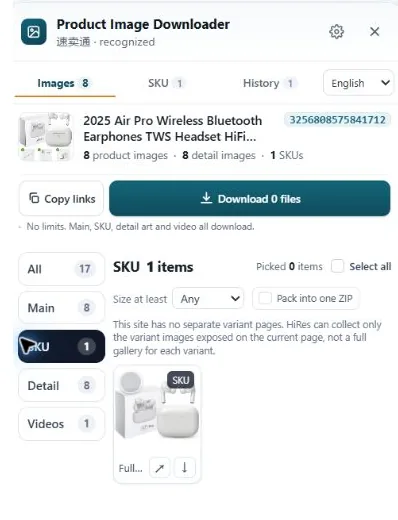
HiRes does the same job from inside the page, and it skips the hunting. Open a product page on Amazon, AliExpress, eBay, TikTok Shop, Temu, Etsy, Lazada or Walmart, click the HiRes button, and the panel lists what the page exposes, already grouped: main gallery, variant images with option labels, and detail images, plus product videos where exposed.
That grouping is what the manual methods cannot give you: files with no labels. HiRes keeps the variant label next to the photo where the page provides it. Where a shop does not expose the mapping, HiRes leaves it unlabeled rather than guessing.
Individual downloads are free, with no account and no cap on product pages. You can copy an image link from the panel, and your last 3 days of downloads stay in history. Pro is $19 once, not a subscription, and adds ZIP packaging, video downloads, resizing and JPEG quality controls, expanded batch export, and long-term history.
One honest limit stays the same. HiRes can only save images the page actually loaded. If a variant needs a click you never made, a detail image needs a scroll you never did, or the page sits behind a login wall, the file is not in the panel. Load the page fully first, then check it.
A note on reusing images. Downloading photos for research and comparison is normal seller work. Publishing someone else's photos in your own listing is different: the rights sit with the brand or photographer. Get written permission, or shoot your own, for anything customer-facing. See our guide on when supplier photos are safe to use.
Questions people ask
Can I download product images without installing anything?
Yes. Your browser already has the tools: right-click to save, the page source to find image URLs, and the DevTools Network panel to catch files as they load. They take more clicks, and they miss images the page has not loaded yet.
Why does right-click save a thumbnail instead of the full image?
The gallery shows a display copy, often a few hundred pixels wide, so the page loads fast. Your browser saves the copy it is showing, not the largest file on the server. Open the image in a new tab or use the zoom view first, then check the pixel size before you save.
Why can't I find some variant or detail images in the page source?
Many product pages load images only when you ask for them. Variant photos appear after you click a color or size option, and detail images load as you scroll down the page. If the image has not loaded yet, its URL is often not in the source at all. Click the option, scroll through the page, then search the source again.
What is the fastest way to download all the images from one product page?
A downloader built for product pages is faster than the manual methods. HiRes groups them into main, variant and detail images, and free individual downloads need no account. Even then, it can only save images the page actually loaded, so a login wall or a variant you never clicked still leaves gaps.
Skip the right-click routine
HiRes gathers the gallery, variant and detail images from the product page you are already on, in one panel. Free for individual downloads, no account needed.
Get HiRes for Chrome