
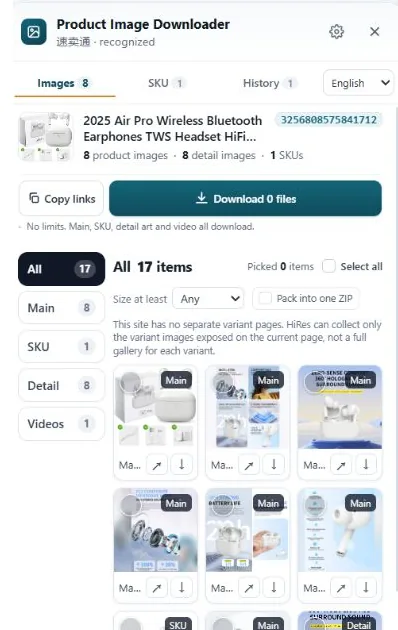
Temu product videos play inside a custom player with no save option, so right-clicking gets you nothing. On desktop, open the listing in Chrome, open the developer tools network panel, filter for media files, play the video, and save the file that appears. For a whole listing at once, HiRes Pro lists the video in the same panel as the photos and downloads it in one click.
Why the video will not save
Temu is an app-first platform, and its product videos are built for watching, not for keeping. On the desktop site, the video plays inside a player that hides the file behind it. Right-clicking the player shows the browser's generic menu, or nothing at all, because the thing under your cursor is a video element fed by a stream, not a file your browser thinks of as downloadable.
Screen recording is the fallback most people reach for, and it is the worst option for this job. A recording captures your screen at whatever resolution your window happens to be, with the player chrome, the cursor and any pop-up in frame. The original file is usually sharper and smaller than any recording of it. If the video matters enough to keep, get the file itself.
One honest caveat: not every Temu listing has a video. Many are photos only, and some sellers put a short clip in as the first gallery item instead of a separate video tile. If the gallery has no video tile, there is no video file to save, and no tool can invent one.
Method 1: pull the file from the network panel
This is the manual route, and it works on desktop Chrome:
- Open the Temu product page on the desktop site, not in the app. If you found the listing in the app, use the share link to open it in Chrome.
- Press F12 to open developer tools, then click the Network tab and type
mp4in the filter box. Some videos load asm3u8playlists instead; if the mp4 filter finds nothing, clear it and trym3u8. - Reload the page, then press play on the product video. Watch the network list: a media file will appear while the video plays.
- Right-click that file in the list, choose Open in new tab, and save it from there. If it is an m3u8 playlist rather than a single mp4, you will need a small tool to fetch the segments and join them, which is the point where most people switch to the method below.
Two things worth knowing. First, the file you get is the one Temu serves, which is usually a compressed web copy, not a studio master. Second, Temu changes its player from time to time, so the exact filter that works today may need adjusting later. The idea stays the same: play the video, watch what the network panel loads, save that file.
Method 2: doing it with HiRes instead
HiRes is a Chrome extension built for Temu product pages. Open any Temu listing, click the HiRes button in the corner, and the panel lists what the page exposes, already sorted: main gallery in one group, option images in another, detail images in a third, and the product video in its own group where the page has one. Click the video and save the file.
Video downloads are part of Pro, the $19 one-time purchase. Individual image downloads stay free with no daily cap, and everything runs locally in your browser: the video goes from Temu's servers straight to your Downloads folder, never through us. The same limit applies as with the manual method: HiRes can only save a video the page actually exposes. A listing with no video tile has no video to list.
A note on reusing videos. Pulling a clip for research, spec checks and supplier comparison is normal seller work. Publishing someone else's video in your own listing is a different matter: the rights sit with the seller or supplier who made it. We wrote a separate guide on when supplier photos are safe to use, and the same line holds for video. Get written permission or shoot your own for anything customer-facing.
Questions people ask
Why can't I right-click and save a Temu product video?
Temu plays product videos inside a custom player that does not offer a save option, and the video file is loaded separately from the page, not as an image you can right-click. The file is there in the page's network traffic, but the page gives you no button for it.
Can HiRes download Temu product videos?
Yes, where the page exposes the video. HiRes lists product videos in the same panel as the listing's images, and video downloads are part of Pro, the $19 one-time purchase. Individual image downloads stay free.
Does every Temu listing have a product video?
No. Many Temu listings are photos only, and some sellers upload a short clip as the first gallery item instead of a separate video. If a listing has no video tile in the gallery, there is no video file to save.
Can I use a Temu product video in my own store?
Downloading a video and having the right to publish it are two different things. Product videos belong to whoever created them, usually the seller or supplier. Sellers commonly download videos for research and comparison, but reusing them in a live listing without permission can get the listing taken down. Ask for written permission or shoot your own for anything customer-facing.
Skip the network-panel routine
HiRes lists the product video from the Temu page you are already on, next to the gallery, variant and detail images. Free for individual image downloads, no account needed.
Get HiRes for Chrome